Android
This guide will show you how to implement the user authentication in a android application application. For this tutorial, we will use the Android demo from GitHub and show you step by step how to run it.
Prerequisites
- Android SDK Version >= 15
- Build Tools Version = 28.0.0 (changeable in build.gradle)
- Android Studio >= 3.5.2
Setup Your Dashboard
Get your credentials and whitelist your application domain as explained in this section. This is a mandatory step to successfully implement and run the demo.
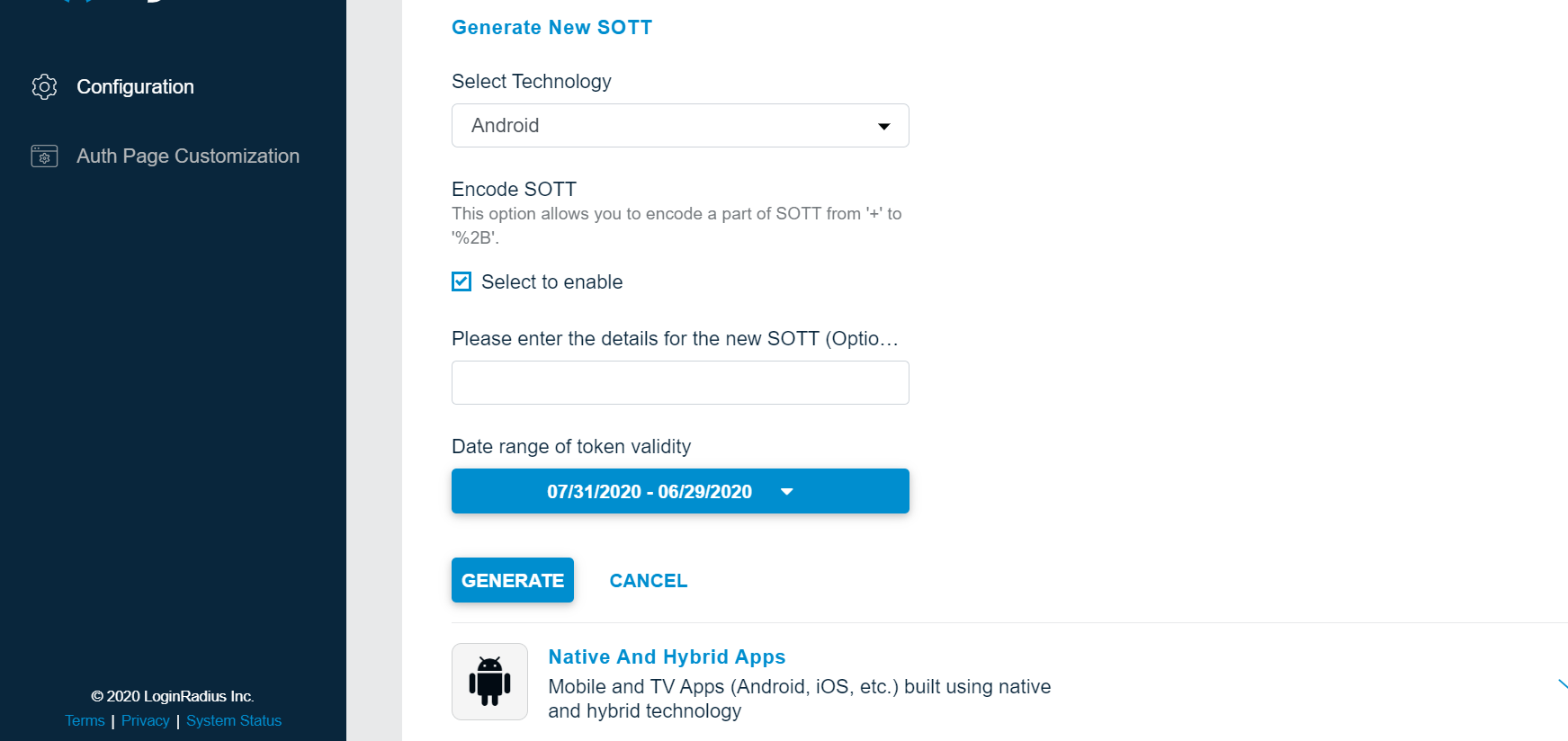
Generate SOTT You need to pass the SOTT value at the time of registration in Android SDK V2 and you can generate this by dashboard.
Open dashboard, click on "Configure Your Application" and open Mobile SOTT . now set the time according to the requirement and generate SOTT.
Start with demo
1.You can clone the demo repository on your system using below commands:
With SSH
git clone git@github.com:LoginRadius/android-sdk.gitWith https
git clone https://github.com/LoginRadius/android-sdk.gitNow import demo in your Android Studio.
After importing the demo project in Android Studio, there is a need to configure API Key, Site Name and SOTT. These values are initialized in MainActivity.java.
LoginRadiusSDK.Initialize init = new Initialize();
init.setApiKey(getString(R.string.api_key));
init.setSiteName(getString(R.string.site_name));
init.setSott(sott);
(a) You can configure API Key and Site Name values in the strings.xml of the demo project.
<resources>
    ....
    <string name="api_key">your loginradius api key</string>
    <string name="site_name">your loginradius sitename</string>
    ....
</resources>
(b) To configure SOTT, replace the value in the following code in MainActivity.java:
String sott = "put your sott here";- Run this application on your android studio
Features implemented in demo
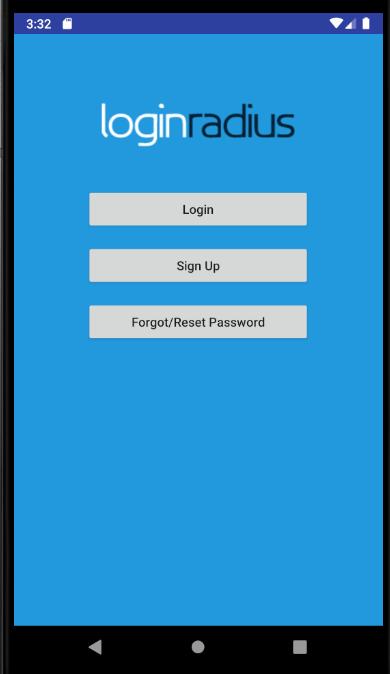
- Login
- Registration
- Email Verification
- Forgot Password
- Reset Password
Discover More
Discover More on
- Add/Update Email Templates
- Customize Your Login Page
- Work with SOTT
How To Guides
- Implement SMTP Configuration
- Implement Social Login