Ruby on Rails
This guide will show you how to implement the user authentication in a ROR application. For this tutorial, we will use the ROR demo from GitHub and show you step by step how to run it.
Prerequisites
This tutorial assumes you have:
- Basic knowledge of HTML/CSS
- Ruby and Rails set up installed on your system
Follow this guide to install Ruby, and this guide to install Rails.
Setup Your Dashboard
Get your credentials and whitelist your application domain as explained in this section. This is a mandatory step to successfully implement and run the demo.
Start with Auth Page (IDX) demo
You can clone the Auth Page demo repository on your system using below commands:
With SSH
git clone git@github.com:LoginRadius/login-page-demos.gitWith https
git clone https://github.com/LoginRadius/login-page-demos.gitNow move to the diretory ROR demo using terminal
cd login-page-demo/ruby-on-rails-idx-demo/This is the file structure you will get in the ROR demo, let's see what each file does
public folder - Contains all the HTML, CSS and JS file to create UI for the test application.
Gemfile - Contains all the bare minimum ROR dependencies needed.
.

-|bin/
-|app/
-|config/
-|lib/
-|public/
-|-- |-css/
-|-- |-icons/
-|-- |-js/
-|-- index.html
-|-- profile.html
-|Gemfile
-|Rakefile
- Set your LoginRadius credentials on the client and server side in the following files
Server side:
Set the generated /config/application.yml with your credentials; an example is provided in config/application.yml.example
  SITE_NAME: <your-site-name>
  API_KEY: <your-api-key>
  API_SECRET: <your-api-secret>
  CUSTOM_API_DOMAIN: "false"
Client side:
To configure the login screen implementation, create options.js in /public/js based on the example provided example in /public/options.js.sample
commonOptions.apiKey = "<LoginRadius API Key>";
commonOptions.appName = "<App Name>";- Running Application
Now Run the following commands in the root of the directory, where gemfile is located
bundle install bundle exec figaro installRun the server using rails server
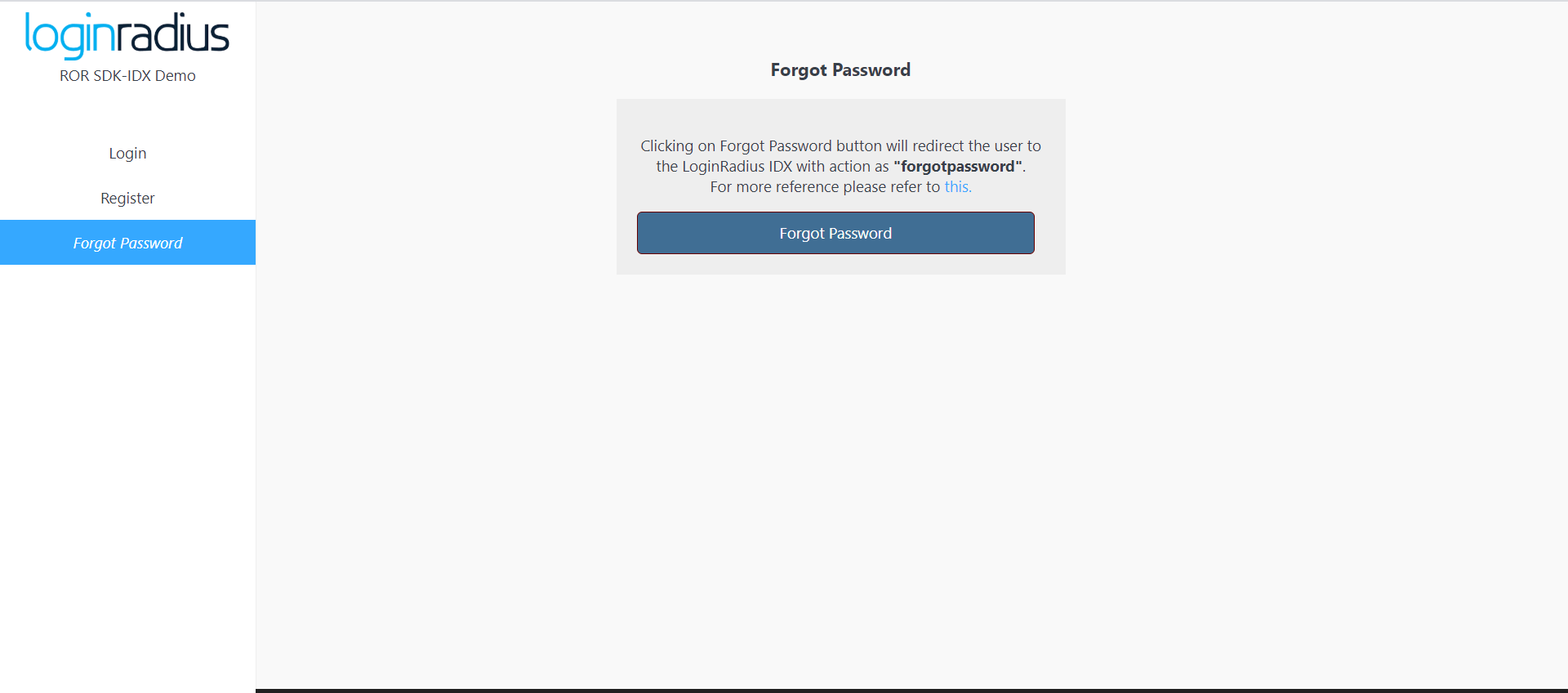
Then visit http://localhost:3000/demo from your local browser and you will see the application running. Once you click on login button it will redirect you to auth page.
Discover More
Discover More on
- Add/Update Email Templates
- Customize Your Login Page
- Work with SOTT
How To Guides
- Implement SMTP Configuration
- Implement Social Login